Monday, October 27, 2014

SEND AUTOMATIC MESSAGES ON WHATSAPP

This post is show you, how can you sendautomatic messages on whatsapp. Is it easy todo ? Of course yes. No doubt , I always share very simple methods for doing complex work in very simple language. Schedule whatsapp message useful to us many times. e.g. Its your friends birthday & you want to wish at 12’o clock, then just schedule the message and go to sleep. Make your life easy and relax. Here are some steps for this trick, given below. Just read and follow carefully..


STEP 1:

First of all , you should have a rooted android phone. [How To Root Your Android]

STEP 2:

Now download and install WhatsAuto Messages App from playstore.
 Cover art

STEP 3:

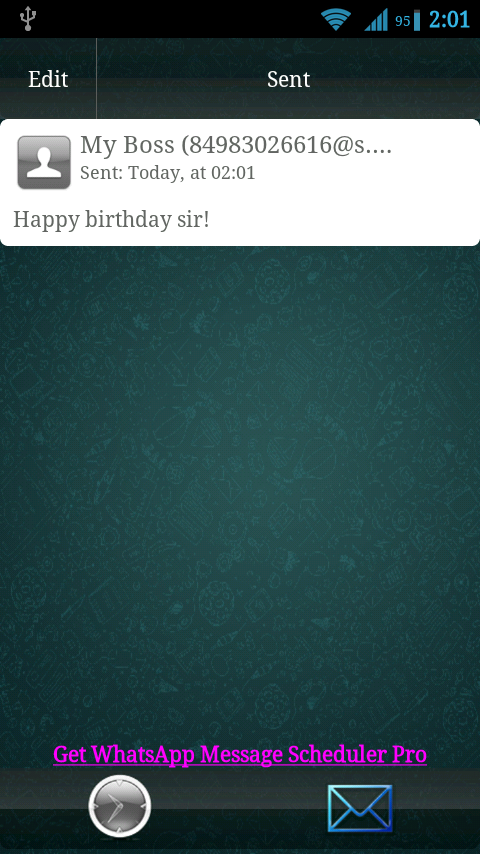
You will get a better UI to use this APP and schedule your messages.
WhatsAuto Messages App - screenshot

So just go for it.
Thanks for reading, now its time to share this post with your friends.

Saturday, October 25, 2014

DOWNLOAD SUBTITLES OF ANY MOVIE IN VLC PLAYER USING VLSUB


Before I start to tell you how to download subtitles of any movie in vlc player. Let me tell you something about VLsub. In actual, VLsub is an extension for vlc player which enable the user to download subtitle of current playing movie. You just need to install this extension and internet connection on your computer to download subtitles. Okay , I think it is enough information to understand this post. I have arranged this post into some steps and also I shared  a Video tutorial below in the post. If you face any problem in any step then just your comment below so that I can help you. Okay lets start…
 
 
STEP 1:
First of all download VLsub extensionon your computer. 
 
 
Now when you will open downloaded file you will see that it is zipped file so our next step is to unzip it using winrar or any unzipper program.  
 
 
STEP 3:
I think hopefully, You have done above steps. Then you will get these files as shown in below screenshot.


STEP 4:
Okay, now question is that how to install it in vlc player. For this , you have to follow these points.
  • Copy vlsub.lua extension file.
  • Now open this path Program FIles>>VideoLAN>>VLC>>lua& make a new folder withextensions name [Note: If you are using WINDOWS OSthen just open run command using WIN + R and write this
    command %ProgramFiles%VideoLANVLClua]
  •  Now just paste vlsub.luaextension file to this folder.
 
 
STEP 5:
You have almost done, now I amgoing to show you how to use it. To use this extension just open any video using VLC player. Now click onVIEW from menu bar. Here you will see same extension name i.e VLsub. Just click on that to search movie’s subtitles.


Enjoy Movies with subtitles. 

Sunday, October 19, 2014

HOW TO INCREASE COMPUTER’S SPEED USING NOTEPAD

Hello friends, now I am going to share how you can increase speed of your pc using notepad. No need of download any external software. No need any software to wipe free space. You haveto just follow some simple steps to make your computer faster..

STEP 1:
First of all open NOTEPAD in your computer. [ WINDOW + R and then type NOTEPAD]
STEP 2:
Now copy and paste given code in notepad

STEP 3:
Save this file as anyname.vbe [e.g BoostUp.vbe] on your desktop
STEP 4:
Now you’ll get below type of icon on yourdesktop
STEP 5:
Now whenever you feel your computer is slowjust click on that icon which I mentioned in 4th Step.
That’s It..
” ENJOY & WAIT FOR NEXT “

Things you can’t do in Windows

Well we all know that windows is very user friendly because of its easy accessibility and world wide popularity. Most of the people using any windows OS think that they can do anything on windows, but that’s not so.
For eg:-
Try to create a folder in Windows with either of these names–
“con” or “nul” or “Aux” or “Lpt1″.
Windows will not let you create ….
This s because these refer 2 some well known ports….
-con corresponds to the console
-Lpt1 corresponds to printer and so on….
well dat was common but how about this ? Try these more.. The full list that is not available so easily..
CON, PRN, AUX, CLOCK$, NUL, COM1, COM2, COM3, COM4, COM5, COM6, COM7, COM8, COM9, LPT1, LPT2, LPT3, LPT4, LPT5, LPT6, LPT7, LPT8, and LPT9.
Cool… isn’t it.
Note:- This trick works with all the version of windows.
Now share this information and enjoy

Thursday, October 16, 2014

What is Steganography | Ethical Hacking

 what is Steganography?
Before coming to the point let me tell you itshistory.
You might have seen in old chinese movies that the monks used to safeguard secrets by hiding those secrets on their body parts so that no one else can see them but them.
This concept was developed further and it was implemented in computers as well.
This is called Steganography.
Now coming to its implementation in Computers.
By the use of Steganography you can Hide one type of file behind other keeping the format of file same.
I personally find it very useful because it helps me hide my important information easily.
So do you want to try Steganography on your machine ?
Lets get started.
NOTE:- The files and folder names I am going to use are just for reference. You may use different if you want to. But forbeginning I would suggest to follow along. Later on you can try it with different file names.
Setup:-

1) Create a new folder named test in any drive (say C: Drive)
2) In  the test folderCreate a text file in it named – hi.txt
3) Copy any default windows picture from my pictures say – desert.jpg in the test folder

Now the game begins.
Type anything you want to in the  Text file and make its font big so that its easily readable
1) Open command prompt
2) Open the test folder.
      You may use the following commands to do that
    2.1)   C:
    2.2)   cd test
3) Now use the following command
      COPY /B desert.jpg+hi.txt new.jpg
       ie… the syntax is
      Copy /B name of file in which you want to embedded the content+ name of file which you want to embedded name of new file
And that’s it. You are done.
Open the test folder and you will see a new image named new.jpg.
When you preview it you will see the normal image but now right click it and open the image with notepad. At the end of the file you can see the text that you wrote in the document.
Well this was just the beginning.
Now the more interesting use of it.
If you want to bind rar files to images. You can do that as well.
(You may put anything you want in the rar file)..
I am sure this was something new for most of you out here..;-)

Monday, October 13, 2014

How to Block Ads on Android Apps and Browser

The Android users always get annoyed from the extra and useless ads on Android apps and Browsers. They simply want to get rid of them. Therefore, today we are going to share a method to block ads.
Block ads,how to block adSome of the users might not be aware with the method of blocking ads on Android apps and browsers. Therefore, you can learn a complete method that, “how to block ads on Android apps and Browsers”.
If I tell you my views on those extra ads, so, I would simply say you that it is really annoying. Every user want to work in free and friendly environment. Hence, to enjoy that friendly environment you are supposed to perform some sort of tricks.
You can use this methods to block ads on Android apps and browsers. Ones, you have applied this trick then you will be able to use apps without ads and browse the internet without the interruption of extra ads.

Why to Block Ads on Android Apps and Browsers?

First of all, let me elaborate it more for you. You are supposed to block ads in order to enjoy the clean and friendly environment.
When you block ads for your apps and browsers then it makes your app work faster and increases the browsing speed of your internet, since, the interruption has removed from your Android.

Block Ads on Android Apps and Browsers

So, friends here comes the main part of the post, which will make you understand that, “how to block ads on Android Apps and Browsers?” We are going to use two different methods for doing so.
You can select any of your convenient method and can start blocking the ads for your apps and browsers. These both methods work awesome and fine.

Method: 1) Block Ads Using Adblock Plus for Android

This is the first method which we have got for you guys to help you out in blocking the ads using Adblock Plus. In this method root is not required at all.
  • First of all, you need to enable unknown sources-you can disable it after ending the block ads process. To enable unknown sources you are supposed to go to Settings >> Security >> Applications
  • After enabling the unknown sources, you are supposed to download Adblock Plus APK. After the completion of  downloading Install it
  • After the installing, run Adblock Plus for your Android device and enable filtering. Then it will automatically done the proxy setting for your device.
  • However, if it does not do the automatic proxy setting for your devices then you can do it manually as well by referring this official guide
  • Ones you have done and followed all the steps then it will start doing its work and will start blocking useless and annoying ads on Android apps and browsers.
Note: Adblock Plus will keep on blocking ads until it is enabled, ones you have disabled it then it will not block ads for your device.

Method: 2) Block Ads Using AdAway App

This is another awesome and workable method which can be used to block ads usingAdAway app. This is the app which really works and gives you awesome results.
However, to get benefit from this method, you are supposed to have rooted device. If you don’t have a root device then you can make your device rooted with the help of below guide and then follow the steps mentioned below:
  • After rooting your device (If not have already), you are supposed to enable the unknown sources. To enable unknown sources you are supposed to go toSettings >> Security >> Applications. You can disable it after finishing the blocking of ads.
  • Afterwards, download the AdAway Appfor you device and then Install it too
  • Ones, installation is done then this AddAway app will scan your device compatibility-let it scan.
  • Afterwards, it will ask you for the root access, grant It and then Click onDownload Files and Apply Ad Blocking, then wait for while to modify it
  • Then restart your device, now the ads on Apps and browsers will be blocked. It will be blocking your ads automatically, you are not supposed to open it on each restart.

Conclusion

These are the two famous methods which can be used to block ads on Android apps and browsers. You can ensure the friendly surfing and using of Android apps without useless ads.
If you want to ask any question related to these methods then you are allowed to lend your queries in the comment box. We shall get back to you to remove your queries.
Additionally, if you have found these block ads methods helpful then do not forget to share it with others in order to help them out to surf and use Android apps and browsers without ads as well.

Saturday, October 11, 2014

How to take a Screenshot on Mac and iPad

In macbook there are many software available for screenshot but today i going to show you how to take screenshot without any software 
take a screenshot,mac,iPadYou don’t need to download any screenshot capturing app or software on your iPad or Mac. However, you need to do little manipulation with your device in order to have a screenshot.
This is the simple trick that Apple has not officially released or unveiled but we have got it for you. If you really want to learn to take a screenshot on Mac or iPad then you need to follow the steps which are mentioned below.

Learn-How to Take a Screenshot on a Mac

First, you are going to learn that, “how to take a screenshot on a Mac?” The steps of doing it and getting access to your screenshots are mentioned below. Follow the steps carefully to get the answer of your question.
The method of taking screenshots on a mac, consists two ways. One is to take the screenshot of complete screen of your program and the second one is to take a screenshot of particular area  on your Mac’s desktop.

Method: 1) Take a Screenshot of Complete Screen

This method is going to teach you take the screenshot of the complete screen of running program, any webpage or of any software.
  • First of all open the program, window or software whose screenshot you want to capture
  • Afterwards, Press Command+Shift+3 on your keyboard and release all keys
  • You have captured the screenshot. Now, to get the access to your screenshot you need to go to Desktop of your Mac and there you will see a image file with .Pngextension, you need to double click on that image file to preview it
  • That is the screenshot which you have captured. Now you can upload it to your website, share it with your friends or use it for any other purpose for which you have captured it.

Method: 2) Take a Screenshot of Particular Area of Screen

Now, this method is going to teach you to take a screenshot of particular area of the screen of any running program, software or website. This can be real sophisticated method. Since, everybody want to take a screenshot of any particular area. So, this can be helpful and workable method for you guys.
  • First of all open the program, webpage or any application whose screenshot you want to capture
  • Afterwards, press Command+Shift+4 on your keyboard and then release all these keys
  • Now your mouse cursor will be changed. You need to take your mouse to the corner of the area whose screenshot you want to capture. Now Press down and drag your mouse to the area where you want to take a screenshot
  • Ones you are done, simply release your mouse
  • Now to access to your screenshot, you need to go to your Mac’s desktop and there you will see an image file with .Pngextension
  • You need to double click on that image to preview it. Now you can use that wherever you want to use it
  • Congratulations! You have successfully captured a screenshot of particular area on your Mac.

Learn-How to Take a Screenshot on an iPad

This is one of the simplest trick of this tutorial. It is not as complicated as above one. You can learn to take a screenshot on an iPad with these simple steps which are elaborated below.
  • First of all Open the app or Program whose screenshot you want to capture
  • Then Press Home and Sleep/Wakebutton at the same time.
  • Afterwards, you will listen a camera shutter sound that means your screenshot has been captured
  • Now to see your captured screenshot. You need to go photos from your settings and then Tap on Camera Roll
  • Furthermore, there you will be able to see the screenshot which you have recently captured.

Conclusion

This was the detailed article which has guide you that, “how to take a screenshot on a Mac and on an iPad?” I am sure this tutorial has helped you a lot and you will be able to take screenshots without using any software or app on your Mac or iPad.
However, if you have any kind of confusions or have any questions to ask then do share your queries and questions with us. We shall try to remove your all related queries as soon as possible.
Finally, if you think that this article which has guide you to take a screenshot using Mac or iPad is helpful then don’t forget to share it with your friends or circle in order to help them out as well