Saturday, November 8, 2014

Simple Cool Tricks With Chrome Developer Tool

 Chrome Developer Tool
As you probably know, there is a button on the right-click menu of Google Chrome and IE 10+ called ''Inspect element''. This the developer tool. And you can have a lot of fun with it. I'll give you two examples on how to use it in this tutorial.

1. Change the text of a webpage:

You can have fun on webpages just by changing the value of a <span> (a text label). For example, go on the 4shared.com site (a free file sharing site). Then create an account if you don't have one (or just connect with Google, Facebook or Twitter). When you are done, upload something that is heavy (more than 100 MB) by dragging and dropping it on the home page of 4shared. Then you can see an uploading status window on the screen. So right-click on the percentage and click on ''Inspect element''. Now you can see a little window that appears on the bottom of the web browser. There are to ways : either you got the number or you got the % symbol. If you got the number, try to find the symbol below. Then double-click on it and type what you want (Eg: '',000,000 dollars in my bank account'')

google chrome tricks

2. Get a Non-Crypted password in JS/PhP code:

Some sites are not very safe and just verify the password directly in the PhP/JS code. Then, even if it become rare, you can get the password. Just follow these steps :

  1. Find the login form on the website you want to hack
  2. Right-click on it and then click on ''Inspect element''
  3. Search on the window that appeared''<form'' and then ''action=''
  4. After it, there is a URL, If it ends by ''.js'', just copy it and paste it in the URL bar of your browser
  5. If it ends by ''.php'', type ''view-source:'' before pasting the URL
  6. Then search something like ''password'' in the code.
WARNING: This method works better with JS than with PHP. Sometimes, there is no URL after ''action='' but just a JS function. Then you have to press Ctrl+U to see the source and search for ''password'' in the whole code.

Monday, November 3, 2014

Top 10 Unknown Google tricks

Google is the Proclaimed king among all search engines present on the internet. Among all the web based search engines, Google stands out because of its high speed and simplicity.


Everyone is familiar with the web applications provided by Google. Some of these are the Gmail, Google Drive,Google app store and a lot more. But little do people know about some very handy tricks that come along with this impeccable search engine.


 TOP 10 UNKNOWN GOOGLE TRICKS OF ALL TIMES:


1. Definition: there is no longer the need to type a word and then visit dictionaries online to find its meaning. Using this trick, all you need to do is simply write “define” followed by the word whose meaning you want to know.You will be amazed to see that the meaning of the word, along with itssynonym and antonym will be displayed on the search engine. For instance, type “define reach” and then press enter. The meaning of the wordwill get displayed on your screen. 


2. Phone number lookup: it is now possible to trace mobile number by simply typing the full number along with the area code. This will display the address as well as the name of the person under whose name the number is registered.


3.Local search: you can now find local restaurants and other landmarks with this trick. Simply go to “Google visit” and type the name of the area and the place which you want to find. It is capable of displaying all local landmarks and places.


4.Translate: the “Google language tool” comes very handy while translating text, words, a fully fledged web page or document on the internet.


5.Find movies and weather: All you need to do is type “movies” or “weather” in the search box followed by the area code or name of the state in order to display corresponding information regarding it. For instance, if you type “weather 12345”, weather conditions of the corresponding location will be displayed. Also, on typing “movies 12345”, the details of all the movies currently running at that place along with number of shows will get displayed.


 6.Paged linked to you: You can now find the web pages and links that are connected with your blog or website. Simply type “link” followed by the URL of your website and you will get a list of all the pages connected with your website.


7.Tracking airline flights and packages: this is another handy trick. You can now find the arrival time and status of a flight by simply entering the name of the airline and corresponding flight number.


8.Calculator: you can use the Google search engine as a real time calculator as well. For instance, if you will type 25+25 in the search box, 50 will get displayed.


9.Stocks: all you need to do is type the stock symbol on Google and you will get information about stock rates, links as well as charts. For instance, to know about the stock details of “Microsoft”, you have to write “msft” on Google.


10.Finding PDF results only: to get results matching only a certain file type, simply type “fileType:” after your search. Online manuals can be found using this trick from Google.


With this it ends my list of Unknown Google tricks, If i am Missing out on any Usefull Trick then please feel free to Comment.

Thursday, October 30, 2014

How to create your own operating system

Ever wanted to create an operating system? Let's create one now. Hey, hey...!! I'm not gonna tell you to write million lines of codes, don't panic. Tocreate your own operating system, you don't require any coding knowledge. We'll do it easily with Suse Studio. So, let's start now.
> Visit Suse Studio website.
> Now, register for a free account and then login toyour account.
> Now from the home screen, click "Create New Appliance".
create new appliance
> Now at this step, you have to select the base template. Select "GNOME Desktop" because it offers graphical user interface so that the users who use this OS will feel comfortable with your OS.
choose base template for your OS
> Now select your architecture and then type the name of your operating system and then click "Create Appliance" button.
> At the next step, you have to add software in your OS. Just click on Software tab and then you will see a list of available software categories.
add softwares in your OS
> To add any software package in your operating system, just click over the software category. After that, you can add the software in your OS by clicking "+add" button. There is a search box also, using which you can search for your desired software such as Firefox, C Compiler etc.
> After adding the softwares and games in your OS, lets customize it's look. Click "Configuration" tab and then click "Personalize" option. Now you can upload a logo for your OS and can change the installation screen background.
> After this, click "General" tab and add username and password to log into your OS.
> Now, click "Build" tab and select "Live CD/DVD .iso" and click "Build" button.
build OS
> Now Suse Studio will start building your iso file. It may take some time to complete, so wait until theiso file gets ready.
iso file building in progress
> After successful creation of ISO file, you can download it and burn it into a CD/DVD and can install in your computer. If you are feeling lazy, then just click "Testdrive" to check your operating system. It will run on the suse studio virtual server from where you can test your OS.
iso created
Keep visiting for more tips and tricks.

Monday, October 27, 2014

SEND AUTOMATIC MESSAGES ON WHATSAPP

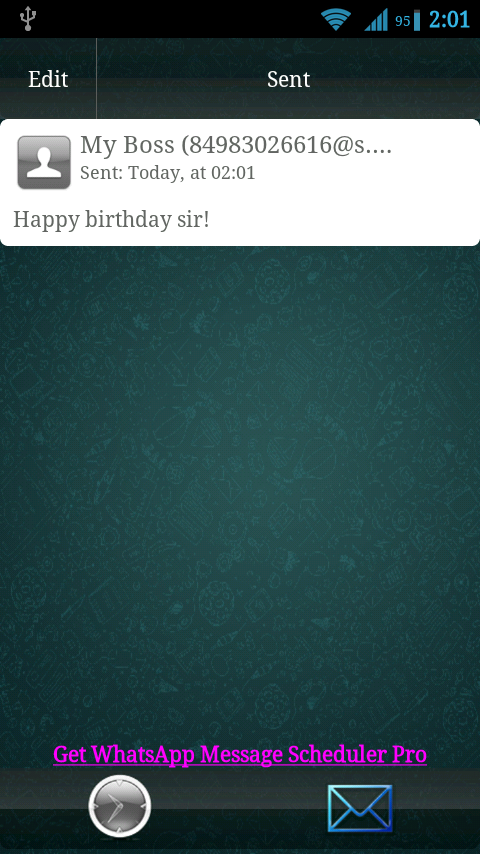
This post is show you, how can you sendautomatic messages on whatsapp. Is it easy todo ? Of course yes. No doubt , I always share very simple methods for doing complex work in very simple language. Schedule whatsapp message useful to us many times. e.g. Its your friends birthday & you want to wish at 12’o clock, then just schedule the message and go to sleep. Make your life easy and relax. Here are some steps for this trick, given below. Just read and follow carefully..


STEP 1:

First of all , you should have a rooted android phone. [How To Root Your Android]

STEP 2:

Now download and install WhatsAuto Messages App from playstore.
 Cover art

STEP 3:

You will get a better UI to use this APP and schedule your messages.
WhatsAuto Messages App - screenshot

So just go for it.
Thanks for reading, now its time to share this post with your friends.

Saturday, October 25, 2014

DOWNLOAD SUBTITLES OF ANY MOVIE IN VLC PLAYER USING VLSUB


Before I start to tell you how to download subtitles of any movie in vlc player. Let me tell you something about VLsub. In actual, VLsub is an extension for vlc player which enable the user to download subtitle of current playing movie. You just need to install this extension and internet connection on your computer to download subtitles. Okay , I think it is enough information to understand this post. I have arranged this post into some steps and also I shared  a Video tutorial below in the post. If you face any problem in any step then just your comment below so that I can help you. Okay lets start…
 
 
STEP 1:
First of all download VLsub extensionon your computer. 
 
 
Now when you will open downloaded file you will see that it is zipped file so our next step is to unzip it using winrar or any unzipper program.  
 
 
STEP 3:
I think hopefully, You have done above steps. Then you will get these files as shown in below screenshot.


STEP 4:
Okay, now question is that how to install it in vlc player. For this , you have to follow these points.
  • Copy vlsub.lua extension file.
  • Now open this path Program FIles>>VideoLAN>>VLC>>lua& make a new folder withextensions name [Note: If you are using WINDOWS OSthen just open run command using WIN + R and write this
    command %ProgramFiles%VideoLANVLClua]
  •  Now just paste vlsub.luaextension file to this folder.
 
 
STEP 5:
You have almost done, now I amgoing to show you how to use it. To use this extension just open any video using VLC player. Now click onVIEW from menu bar. Here you will see same extension name i.e VLsub. Just click on that to search movie’s subtitles.


Enjoy Movies with subtitles.